
Introduction
Common desktop computer problems hit at the worst possible time. Your screen goes black mid-task. The fan roars, but nothing loads. The whole tower stays silent when you hit the power button.
Most desktop issues trace back to a short list of causes. Dust builds up. Software slows down. A single part wears out while everything else still works fine. Once you know the pattern, the fix often gets simple.
This guide covers the most common desktop computer problems. It explains what usually causes each one. It shows what you can try before calling for help. Quick Phone Repair & Designs offers free desktop diagnostics at both our Raleigh locations. A professional opinion never costs you anything upfront.
Why Desktops Develop Problems Over Time
A desktop tower runs longer hours than most devices in your home. Dust collects inside the case constantly. Fans wear down after years of spinning. Storage drives fill up. Old software piles on top of new updates.
None of this means your computer is failing for good. Most common desktop computer problems come from wear, buildup, or one worn part. Total system failure stays rare. A clear diagnosis usually points to one specific fix, not a full replacement.
The Computer Won’t Turn On
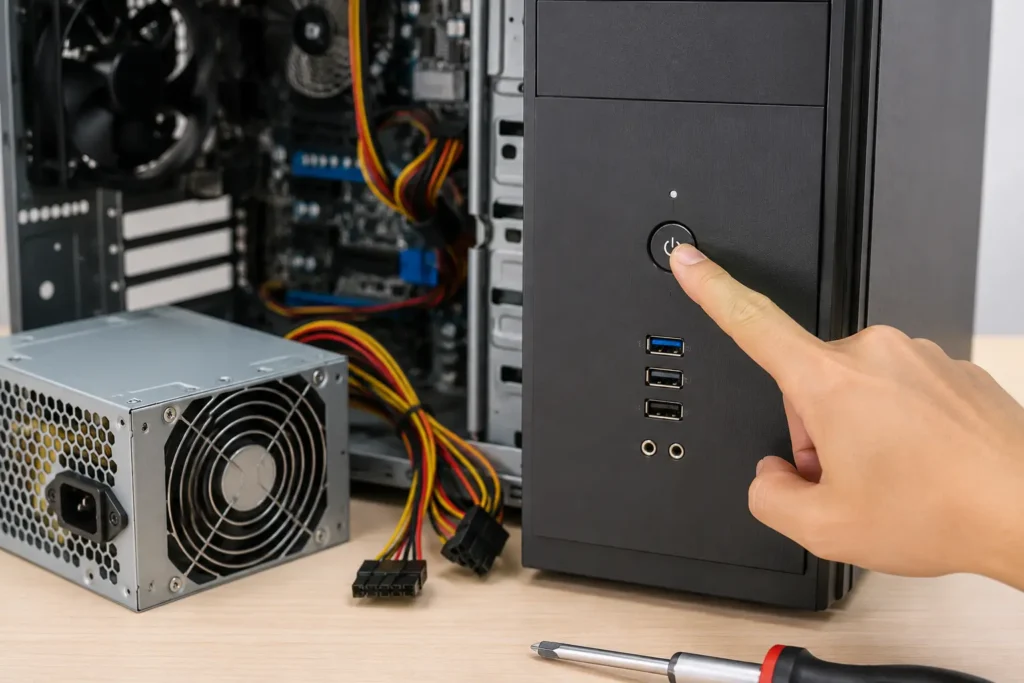
This ranks among the most common desktop computer problems we see at our Raleigh shop. A silent tower usually points to one of a few causes.
- Check the power cable and outlet. Try a different outlet. Confirm the cable sits firmly in both the wall and the tower.
- Check the power supply switch. Many towers have a small switch on the back near the cable input. Confirm it sits in the “on” position.
- Listen for any sound at all. A quiet click or a brief fan spin points to a power supply issue. Total silence points elsewhere.
- Reseat internal cables. If you’re comfortable opening the case, confirm the power cables sit firmly on the motherboard.
A dead power supply is a common, affordable fix. A dead motherboard costs more. Our free diagnostic tells you which one you’re facing first.
Blue Screen Errors and Random Crashes
A blue screen interrupts your work. It looks alarming. It usually points to a specific, fixable cause.
Common causes:
- Outdated or corrupted drivers
- Failing memory (RAM)
- Overheating components
- A recent software conflict
What you can try first:
- Restart the computer. Note the error code on the blue screen it often names the exact component involved.
- Update your graphics and motherboard drivers through the manufacturer’s website.
- Run your operating system’s built-in memory diagnostic tool to rule out a RAM issue.
When you need a professional: Blue screens that keep happening after a driver update need a closer look. A technician can test the actual components instead of guessing from software alone.
Slow Performance and Long Load Times
A desktop that once felt fast can slow down slowly over time. Pinpointing the cause makes a real difference.
Too Many Startup Programs
Many programs quietly launch every time you boot the computer. Open your task manager’s startup tab. Disable anything you don’t use daily. This single step often restores real speed.
A Nearly Full Hard Drive
A drive running above 90% capacity slows the whole system down. Clear out old downloads. Empty the recycle bin. Move large files to external storage or cloud backup.
An Aging Hard Drive
Traditional hard drives slow down as they age. Some eventually fail outright. Upgrading to a solid-state drive (SSD) often delivers the biggest speed boost an older desktop can get. Quick Phone Repair & Designs stocks SSD upgrades for most common desktop models. We can complete the swap same-day.
Overheating and Loud Fan Noise
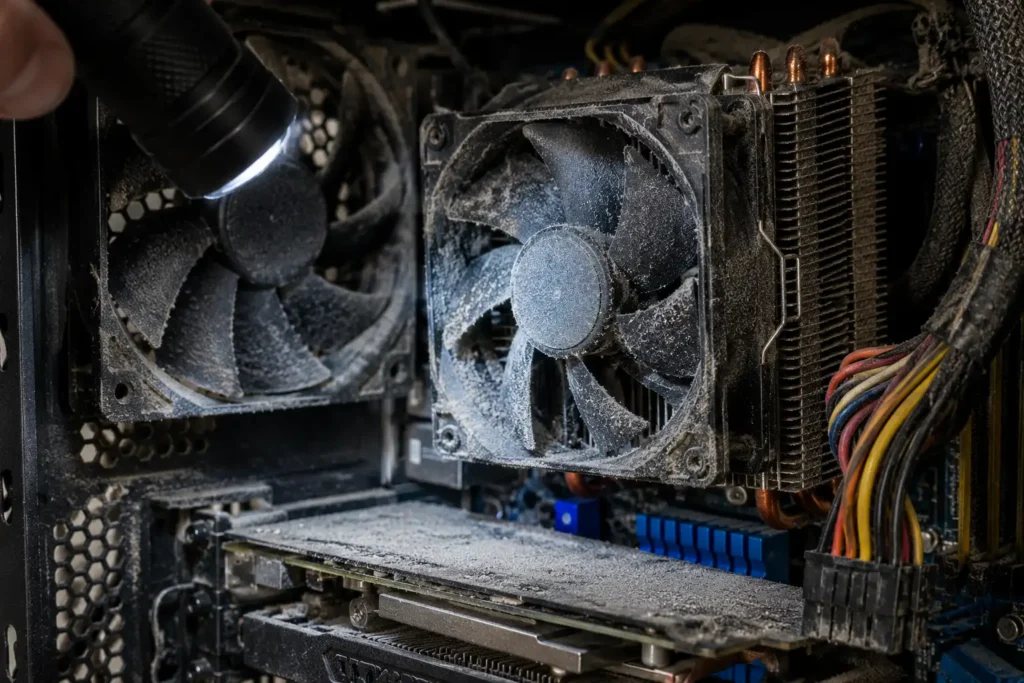
Dust is the single biggest cause of desktop overheating. It’s also one of the easiest problems to prevent.
- Compressed air clears dust from fans and heatsinks. Power off the computer first. Hold fans still while spraying, since spinning past their rated speed can damage them.
- Poor airflow inside the case raises temperatures. Loose cables blocking vents often make heat buildup worse.
- Aging thermal paste loses effectiveness over time. A hot computer with clean fans may just need fresh paste on the processor.
- A failing fan bearing causes grinding or rattling noise. This calls for a replacement, not a cleaning.
Overheating left unresolved shortens the life of expensive parts. It’s worth fixing early, before it causes a shutdown.
The Monitor Shows No Display
A computer that powers on but shows nothing creates a confusing moment. Work through these steps in order.
- Check the monitor’s own power and input source. Confirm it’s set to the right input channel.
- Try a different cable or port. A loose or damaged HDMI or DisplayPort cable causes this often.
- Listen for normal boot sounds. Fans spinning and a single beep mean the computer runs fine. The fault likely sits with the display connection.
- Reseat the graphics card. If you’re comfortable opening the case, confirm the card sits firmly in its slot.
Random Shutdowns and Restarts
A desktop that shuts down mid-use points to a short list of causes. Overheating tops that list. A failing power supply comes next. A hardware conflict from a recent update rounds it out.
Check your temperatures first with free monitoring software. Overheating remains the most common trigger by far. If temperatures look normal, run a stress test. This helps isolate whether the power supply struggles under load.
Random shutdowns rank among the trickier common desktop computer problems to self-diagnose. A professional diagnostic often saves real time here, and it costs nothing upfront at our shop.
Virus and Malware Infections
Malware causes a wide range of symptoms. Sudden slowdowns, strange pop-ups, and unfamiliar programs all point here.
- Run a full scan with trusted antivirus software. Let it finish completely rather than canceling partway through.
- Update your operating system fully. Many infections exploit gaps a pending update already closes.
- Avoid unfamiliar download sources. Free software from unofficial sites carries real infection risk.
- Back up important files first. Some deep removal steps need a system reset as a last resort.
Persistent infections that survive a full scan often point to something deeper. Our technicians run specialized removal tools that go past typical consumer antivirus software.
No Internet or Wi-Fi Connection
A desktop that suddenly loses its connection rarely has a serious cause. Restart your router and modem first, and give them a full minute to reconnect. Check whether other devices on the same network still connect fine, since this tells you if the problem sits with the desktop or the network itself. Update your network adapter driver through your device manager if the issue persists. A desktop using an older Wi-Fi adapter sometimes benefits from a simple hardware upgrade, and our technicians can recommend one that fits your setup.
Keyboard, Mouse, and Peripheral Issues
Peripherals fail more often than people expect. The fix rarely involves the computer itself. Try the device on a different USB port first, since one failing port causes this often. Test the keyboard or mouse on another computer if you have one nearby. This quickly confirms whether the device or the desktop is at fault. Replace batteries in wireless peripherals before assuming anything deeper. A driver reinstall through your device manager solves many stubborn issues without new hardware.
Common Mistakes That Make Desktop Problems Worse
A few habits turn a simple fix into a bigger repair bill.
- Ignoring loud fan noise for months. Continued overheating stresses the processor over time.
- Opening the case without proper grounding. Static discharge can damage sensitive components instantly.
- Using unofficial power supply replacements. A mismatched power supply can damage everything it connects to.
- Skipping regular backups. A drive failure without a backup means real, permanent data loss.
- Forcing cables into the wrong ports. This bends pins and turns a simple issue into a costly repair.
Backing Up Your Data Before Any Repair
Data safety matters just as much as the repair itself. Back up important files to an external drive or cloud storage before bringing your desktop in for service. Quick Phone Repair & Designs treats your data with care during every repair, but a personal backup gives you extra peace of mind. This step takes only a few minutes and can save years of photos, documents, and projects.
What Common Desktop Computer Repairs Cost
Repair costs vary by the part involved, but most fixes cost far less than a new machine. A power supply replacement sits at the affordable end of the scale. A hard drive or SSD upgrade costs a bit more, but it often transforms an old desktop’s speed entirely. Motherboard repairs sit at the higher end, since more labor and more careful diagnostic work go into them. Virus removal and software cleanup usually cost less than any hardware fix. Our free diagnostic gives you the exact number before any work begins, so nothing feels like a surprise.
Common Desktop Computer Problems We Fix Most Often
Our Raleigh technicians see the same handful of issues week after week. Power supply failures top the list, followed closely by slow performance from aging hard drives. Overheating from dust buildup comes in third, especially during summer months. Virus and malware cleanup rounds out our most requested desktop services. Knowing which problem you’re facing helps us quote a fair price fast.
What to Expect During Your Repair Visit
A typical visit starts with our free diagnostic, usually completed the same day. We explain the cause in plain language, not technical jargon you can’t use. You approve the repair cost before any work begins, so there’s never a surprise on pickup day. Most common desktop computer problems get fixed within a few hours, and tougher hardware issues rarely take more than a day or two. We test everything thoroughly before handing your desktop back, and every repair carries our standard warranty.
DIY Fixes vs. Professional Repair: Making the Right Call
Plenty of common desktop computer problems respond well to a DIY attempt first. Restarting the computer, updating drivers, and clearing storage space cost nothing and carry almost no risk. Cleaning dust with compressed air also stays safe for most homeowners, as long as you power the machine off first.
Some fixes carry real risk if done incorrectly. Opening the case without proper grounding can damage sensitive components through static discharge. Replacing a power supply with the wrong wattage or connector type can harm other parts it connects to. Reseating a graphics card without care can bend delicate pins on the slot itself.
A simple rule works well here: try the free, low-risk steps first. Bring the desktop in once those steps don’t solve the problem, or once you’re dealing with anything that requires opening the case beyond basic dust removal. Quick Phone Repair & Designs never charges for the diagnostic step, so testing the waters costs you nothing even if the fix turns out to be simple.
Signs Your Desktop Needs Immediate Attention
A few warning signs shouldn’t wait for a convenient afternoon. A burning smell near the tower means stop using it immediately and unplug it. Smoke, even a small wisp, calls for the same response. Repeated random shutdowns during light use, not just gaming, point to a real hardware fault worth checking soon. Clicking sounds from inside a hard drive often mean the drive is failing, and backing up your files right away matters more than the repair itself in that moment.
Why Choose Quick Phone Repair & Designs for Desktop Repair
Common desktop computer problems deserve a repair shop that treats desktops as seriously as phones and laptops. Quick Phone Repair & Designs stocks components for most major desktop brands and models. Same-day repairs stay realistic here, not just optimistic. Our free diagnostic tells you exactly what’s wrong before you commit to any cost. Every repair leaves our shop backed by a warranty, so you get real confidence in the fix.
We also handle the laptop repairs and phone repairs that often come up alongside desktop questions. One visit can cover your whole household’s devices.
Preventing Future Desktop Problems
A little routine care prevents most common desktop computer problems before they start. Clean dust from fans and vents every few months, especially in homes with pets. Keep your operating system and drivers updated on a steady schedule. Back up important files automatically through cloud storage or an external drive. Watch your available storage space, and clear it out well before it fills up completely.
Common Desktop Computer Problems: When It’s Time to Call a Professional
Not every issue needs a shop visit, but some clearly do. A computer that won’t turn on after basic checks needs a real diagnostic. Blue screens that continue after driver updates point to hardware. Overheating that persists after cleaning suggests a deeper fan or paste issue. Random shutdowns under normal use, not just heavy gaming, deserve a closer look too. Quick Phone Repair & Designs runs a free diagnostic on every one of these cases, so you always know the real cause before paying anything.
Common Desktop Computer Problems in Raleigh, NC
Quick Phone Repair & Designs offers free desktop diagnostics at both our North Raleigh and South Raleigh locations. Our technicians handle everything from a computer that won’t turn on to a full virus removal or hardware upgrade. Most repairs finish the same day you walk in.
We serve Raleigh, Garner, Wake Forest, Knightdale, Cary, Durham, Apex, Clayton, Morrisville, and the surrounding Triangle area. Walk-ins are welcome. You can also book an appointment online or get an instant quote before your visit.
North Raleigh: 3111 Leland Dr, #110, Raleigh, NC 27616 — (919) 295-1397 South Raleigh: 6213 Rock Quarry Rd, #106, Raleigh, NC 27610 — (919) 307-8600
Dealing with a broken phone alongside your desktop trouble? Check our guides on common iPhone screen problems, Samsung Galaxy problems, and recovering photos from a broken phone.
Frequently Asked Questions
What are the most common desktop computer problems?
The list includes a computer not turning on, blue screen errors, slow performance, overheating, no display, random shutdowns, virus infections, and peripheral failures.
Why is my desktop computer running so slow?
Slow performance usually comes from too many startup programs, a nearly full hard drive, or an aging traditional hard drive that would benefit from an SSD upgrade.
How do I know if my computer’s power supply is failing?
Watch for random shutdowns under load, a tower that won’t turn on despite a good outlet, and unusual clicking or burning smells near the power supply unit.
Can dust really cause my computer to overheat?
Yes. Dust blocks airflow across fans and heatsinks. This traps heat inside the case and raises internal temperatures over time.
Do you repair desktop computers the same day in Raleigh?
Yes. Quick Phone Repair & Designs offers same-day desktop computer repair and free diagnostics at both Raleigh locations.
Is it worth repairing an old desktop computer, or should I replace it?
Many common desktop computer problems, like a failing power supply or an aging hard drive, cost far less to repair than a full replacement. Our free diagnostic gives you a clear cost comparison first.
How often should I clean dust out of my desktop computer?
Every three to six months works well for most homes. Homes with pets or heavy dust may need cleaning more often to avoid overheating problems.