
Introduction
Recovering photos from a broken phone feels impossible at first. The screen is cracked. The phone won’t turn on. Maybe water got inside. Every photo you’ve ever taken suddenly feels out of reach.
Take a breath first. Your photos likely still exist. They may sit on the phone’s storage chip. They may already live in a cloud backup. Several proven methods can bring them back.
This guide covers every realistic path for recovering photos from a broken phone. We start with the fastest options. We move toward professional data recovery for tougher cases. Readers in Raleigh, Garner, Cary, and Durham will also find local next steps near the end.
Why a Broken Screen Doesn’t Always Mean Lost Photos
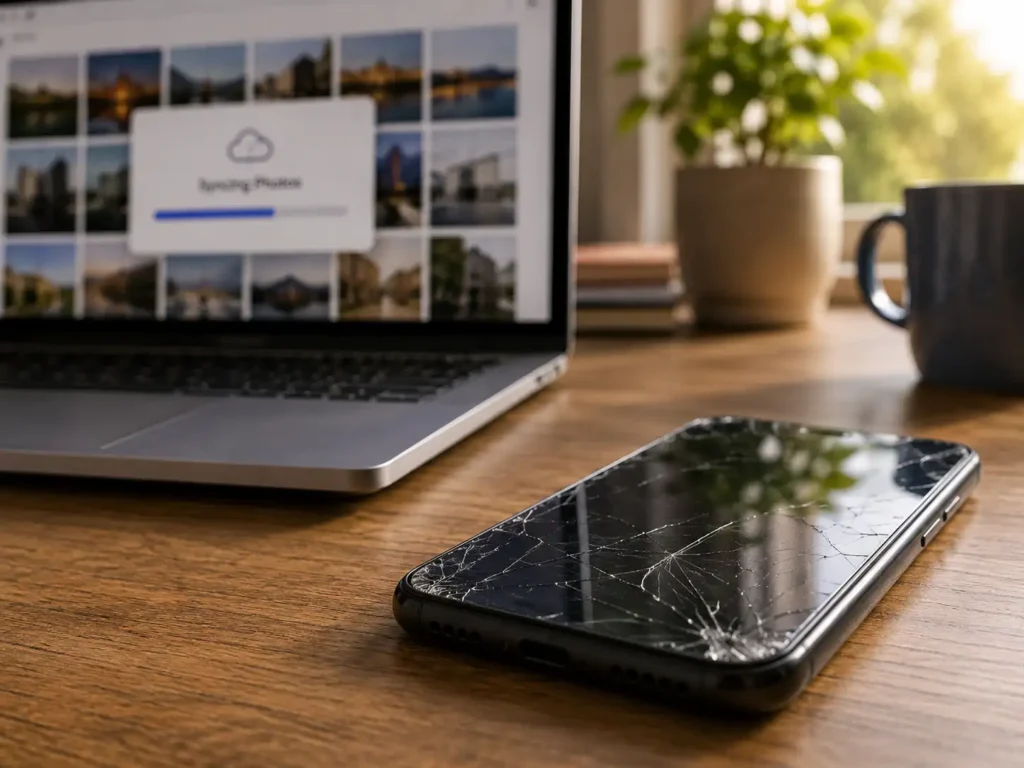
A cracked screen looks like the end of the road. It usually isn’t. The screen and the storage chip are two separate parts. A shattered display blocks your view. It rarely touches the memory chip underneath.
Water damage works differently. It can spread past the screen into deeper components. Recovery odds depend on how much moisture got in. They also depend on how fast you acted afterward.
A phone that won’t power on brings its own set of causes. A dead battery looks identical to total failure. A failed charging port can cause the same symptom. A cracked logic board is more serious, but still not always fatal to your photos.
Recovering Photos From a Broken Phone: Start With Cloud Backups

Cloud backups solve most cases without touching the broken device at all. Check these three places before you try anything else:
- iCloud Photos. Log into icloud.com from any computer. Check whether your library synced before the phone broke.
- Google Photos. Visit photos.google.com. Sign in with the same account your Android phone used.
- Samsung Cloud. Samsung phones often back up separately from Google. Check this portal if iCloud or Google Photos comes up empty.
A synced backup changes everything. Your photos already sit safely in the cloud. The broken phone stops being urgent. This one check resolves a large share of cases where people are recovering photos from a broken phone.
How to Recover Photos From a Phone With a Cracked Screen
A cracked screen that still lights up gives you strong options. Touch response matters more than the glass itself.
Use a USB Connection
Plug the phone into a computer with its original cable. Windows and Mac both detect the phone as storage once it unlocks. You can then drag photos straight onto the computer. If the touchscreen still registers taps, unlock the phone and approve the trust prompt.
Try a Wireless Transfer App
Apps like AirDrop and Google’s device transfer tools skip careful navigation entirely. A single tap or voice command often finishes the job. This helps when the cracks make small on-screen targets hard to hit.
Use an OTG Adapter for a Dead Touchscreen
Sometimes the screen lights up, but touch stops working. An OTG (On-The-Go) adapter lets you plug in a mouse. This restores full navigation without touching the glass. Recovering photos from a broken phone stays realistic even after a touchscreen fails completely.
Recovering Photos From a Broken Phone That Won’t Turn On
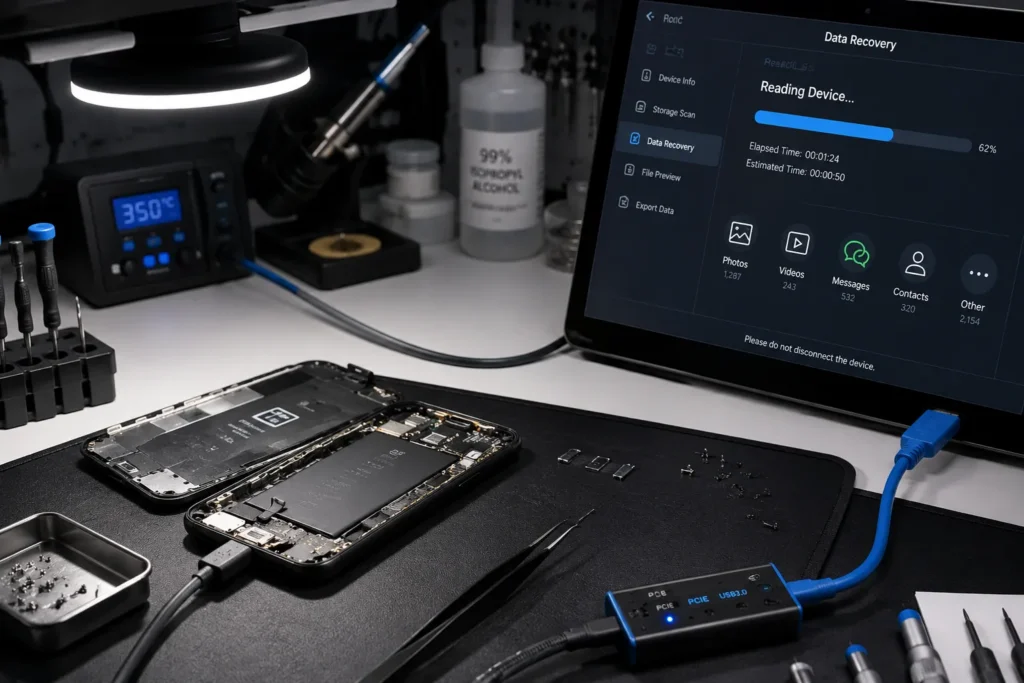
A phone with no signs of life still has real options. Don’t panic yet.
- Charge it for 30 minutes. Use a known-good charger and cable. A dead battery mimics total failure very convincingly.
- Try a force restart. The steps vary by model. Most involve holding the volume and power buttons in sequence.
- Book a diagnostic. A trained technician can often power the storage chip on its own, separate from the rest of the phone.
- Stop repeated power attempts. If you suspect internal damage, cycling the power repeatedly can sometimes make things worse.
Professional shops can often reach the storage chip directly. This bypasses a dead screen, a broken power button, or a failed charging port.
Recovering Photos From a Water-Damaged Phone
Water changes the whole equation. Speed matters here more than almost anything else.
Right after water exposure:
- Power the phone off immediately. Continued electrical activity while wet raises the risk of a short circuit.
- Dry the outside gently. Skip the rice trick — rice doesn’t actually pull moisture out of internal parts.
- Leave the phone alone in a dry room for 24 to 48 hours. Don’t rush the power-on attempt.
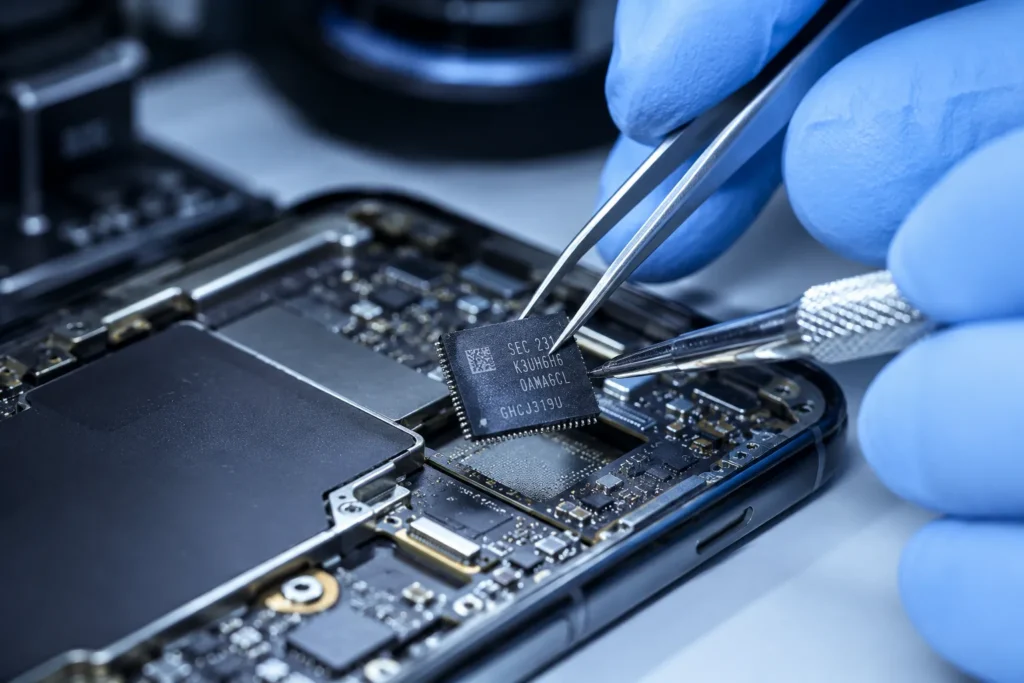
If the phone still won’t turn on after drying: A data recovery specialist can remove the storage chip and read it on its own. This works even when the rest of the phone has failed completely. People call this process chip-off recovery. It gives water-damaged phones a real second chance.
Recovering Photos From an iPhone With a Broken Screen
iPhones handle broken-screen recovery a bit differently than Android phones. iCloud sync often runs automatically in the background, so check it first. Finder or iTunes can also pull a full backup from a connected iPhone, even with a badly cracked screen. If Face ID or Touch ID still works, unlocking the phone through a connected computer becomes much easier. A shattered but responsive screen rarely blocks a Lightning or USB-C data transfer.
Recovering Photos From a Broken Samsung or Android Phone
Android phones offer one advantage many iPhones don’t: removable storage. Many Samsung and other Android models use a microSD card for photo storage. Pop the card out, and you can read it with any standard card reader. Samsung Cloud, Google Photos, and Smart Switch all offer separate backup paths worth checking. A broken screen rarely stops a card reader from working, since the card itself never touches the display.
DIY Recovery Software Worth Trying
Recovering Photos From a Broken Phone With Dedicated Apps
Certain recovery tools scan a device’s storage directly. They can pull deleted photos back, especially useful if photos vanished before the phone broke. Results vary by phone model and how much new data overwrote the old files.
iPhone Backup Extraction Tools
A local computer backup, made before the phone broke, holds real value here. Backup extraction software can pull individual photos from that file. You don’t need to restore the whole phone to get your pictures back.
SD Card Readers for Android Devices
Many Android phones store photos on a removable SD card. Pull the card out and read it through a standard card reader. This sidesteps the broken phone’s problems entirely.
How Long Does Photo Recovery Take?
Recovery time depends heavily on the damage type. A simple cloud backup check takes minutes. A USB or wireless transfer from a cracked-but-working screen takes under an hour in most cases. Chip-off recovery for a dead or water-damaged phone takes longer, often a few business days, since technicians need time to test the extracted chip safely. Ask your repair shop for a time estimate before you commit to any recovery method.
What Does Photo Recovery Cost?
Cost depends on the damage and the device model. A cloud backup check costs nothing. A USB transfer from a working port costs nothing beyond your time. Professional chip-off recovery costs more, since it requires specialized tools and a controlled workspace. Quick Phone Repair & Designs offers a free diagnostic first, so you know the real cost before paying anything.
Common Mistakes That Hurt Your Chances
A few habits reduce your odds of success:
- Powering on a water-damaged phone repeatedly. This risks a short circuit before the phone finishes drying.
- Attempting DIY screen removal without the right tools. This risks damage to the small cables connecting the screen to the storage chip.
- Waiting too long to act. Batteries drain fully, and corrosion spreads the longer a damaged phone sits untouched.
- Skipping the cloud backup check. This wastes both time and money on methods you never actually needed.
- Using unreviewed recovery software. Some free tools carry malware risks or fail to preserve full photo quality.
Preventing Future Photo Loss
A little prevention saves a lot of stress later. Turn on automatic cloud backup today, for both iPhone and Android. Check your backup status every few months to confirm it’s still running. Keep your phone in a sturdy case, especially near water or on hard floors. Back up important photos to a second location, like a computer or external drive, for extra peace of mind.
When to Trust a Professional Data Recovery Service
Some situations call for professional help, not a home attempt:
- The phone shows no life after a full charge and a force restart.
- Water got in, and drying hasn’t restored power.
- The screen is too damaged to navigate, even with an OTG mouse.
- The photos matter enough that a failed DIY try would feel devastating.
A professional technician brings the right tools and a controlled environment. Years of experience across dozens of device models raise the odds of success far above a home attempt.
Recovering Videos and Other Media From a Broken Phone
Photos rarely travel alone. Videos, voice memos, and saved documents usually sit right beside them in storage. Every method covered above works for these file types too, not just still images.
Video files take up far more space than photos, so a partial cloud backup sometimes misses recent clips. Check your cloud storage plan and confirm it covers video, not just photos. Some free storage tiers cap video uploads or compress them automatically.
Voice memos and downloaded documents typically live in separate app folders. A direct USB connection to a working phone usually reaches these folders without extra steps. Chip-off recovery, used for phones with no power at all, pulls every file type from the chip at once. This means a successful recovery often returns your photos, videos, and documents together, not one file type at a time.
What to Bring to a Data Recovery Appointment
A little preparation speeds up the whole process. Bring the phone itself, along with its original charging cable if you still have it. Bring any account details for iCloud, Google, or Samsung Cloud, so a technician can quickly check backup status. Mention any water exposure, drops, or unusual behavior before the phone stopped working, since these details help narrow down the likely cause fast. A clear timeline often saves real diagnostic time.
Recovering Photos From a Broken Phone: A Simple Decision Path
Not sure where to start? Use this quick path to find your situation.
Does the Phone Turn On?
If yes, check cloud backups first. This step takes only a few minutes. If the screen still responds to touch, try a direct USB transfer next.
Does the Screen Respond to Touch?
If yes, a USB cable or wireless transfer app should work well. If no, try an OTG mouse adapter before giving up on the built-in options.
Was the Phone Exposed to Water?
If yes, power it off right away. Dry it fully before any other step. Rushing this part causes more harm than good.
Does the Phone Show Any Signs of Life at All?
If no, a professional diagnostic becomes your best next move. A trained technician can often reach the storage chip even when the phone itself seems completely dead.
This short path narrows down the right method fast. It also helps you avoid wasted time on steps that won’t apply to your specific situation.
Recovering Photos From a Broken Phone Without a Recent Backup
Not everyone has a synced cloud backup. This doesn’t mean your photos are gone for good. Local backups on a computer, made through Finder, iTunes, or a manufacturer’s desktop app, can still hold recent photos. Check any computer the phone connected to in the past. An old backup file, even one from months ago, still holds real value.
Photos already shared through text messages or email often survive on other devices too. Check group chats, sent folders, and shared albums. Family members or friends may have copies you forgot about. A quick search across your other devices sometimes turns up photos faster than a full data recovery attempt.
Recovering Photos From a Broken Phone Using Third-Party Recovery Software
Choosing Safe Recovery Software
Stick to well-known, widely reviewed recovery programs. Read recent user reviews before downloading anything. Avoid free tools with vague company information or no clear support contact. A little research here prevents a lot of frustration later.
What Recovery Software Can and Can’t Do
Recovery software works best on phones that still power on and mount as storage. It scans for photo files the operating system no longer shows in the gallery app. It cannot help with a phone that won’t power on or connect at all. In that case, hardware-level recovery becomes the only realistic path forward.
Running a Safe Recovery Scan
Connect the phone to a computer first. Run the software’s scan function and let it complete fully, since interrupting a scan can produce incomplete results. Review the recovered files carefully before saving them, since some tools recover thumbnails only rather than full-resolution images.
How Phone Damage Affects Recovery Difficulty
Not all damage affects photo recovery equally. A cracked screen with working touch input barely slows things down. A cracked screen with dead touch input adds one extra step, usually solved with an OTG mouse. A phone that won’t power on at all requires more diagnostic work, but often still succeeds. Deep water damage or serious physical trauma to the logic board presents the hardest cases, though chip-off recovery still helps often enough to be worth trying.
Recovering photos from a broken phone almost always beats writing the photos off completely. Even in tough cases, a free diagnostic costs nothing and rules out the easy wins first.
Recovering Photos From a Broken Phone in Raleigh, NC
Quick Phone Repair & Designs offers photo and data recovery diagnostics at both our North Raleigh and South Raleigh locations, alongside our standard screen and charging port repair services. Our technicians check cloud sync status first. They attempt direct storage access next. When needed, they coordinate deeper data recovery for water-damaged or non-powering devices.
We serve Raleigh, Garner, Wake Forest, Knightdale, Cary, Durham, Apex, Clayton, Morrisville, and the surrounding Triangle area. Walk-ins are welcome. You can also get an instant quote before your visit.
North Raleigh: 3111 Leland Dr, #110, Raleigh, NC 27616 — (919) 295-1397 South Raleigh: 6213 Rock Quarry Rd, #106, Raleigh, NC 27610 — (919) 307-8600
If a broken screen is your main problem, not the photos, check our iPhone screen problems guide and Samsung Galaxy problems guide for common causes and fixes. Charging trouble on the same device? Our dirty vs. damaged charging port guide walks through that separately.
Frequently Asked Questions
Can I recover photos from a broken phone that won’t turn on?
Yes, in many cases. A technician can often reach the storage chip directly, even when the rest of the phone has failed completely.
Does a cracked screen mean my photos are gone?
No. The screen and the storage chip are separate parts. A shattered display rarely destroys the photos stored underneath it.
How do I recover photos from a water-damaged phone?
Power the phone off right away. Dry it for 24 to 48 hours without rice. Seek a professional service if it still won’t turn on afterward.
Is DIY photo recovery software safe to use?
Reputable, well-reviewed tools are generally safe. Unfamiliar or unofficial software can carry malware risks, so research any tool first.
How much does professional photo recovery cost?
Cost depends on the damage type and device model. Quick Phone Repair & Designs offers a free diagnostic, so you know the real cost before paying anything.
How long does photo recovery usually take?
A cloud check takes minutes. A working-screen transfer takes under an hour. Chip-off recovery for dead or water-damaged phones can take a few business days.
Can I recover photos if I never set up a cloud backup?
Yes, often. Check any computer the phone connected to for a local backup file. Check shared texts, emails, and group chats for copies too. A professional diagnostic can also check the storage chip directly, even without any backup in place.
Will a factory reset erase my chances of recovering photos?
A factory reset can overwrite existing data over time, so avoid resetting a broken phone before you attempt recovery. If a reset already happened, don’t panic the storage chip may still hold recoverable data until new files overwrite it.
Final Thoughts on Recovering Photos From a Broken Phone
Recovering photos from a broken phone rarely means starting from zero. Most people find their photos through a quick cloud check, a simple cable connection, or a same-day diagnostic at a local repair shop. Even tougher cases, like water damage or a phone with no power at all, still have real recovery odds through professional chip-off methods.
The biggest mistake is waiting too long or attempting risky DIY fixes before checking the easy options first. Start with the cloud. Move to a direct connection if the phone still works. Bring it to a trusted technician if it doesn’t. Your photos are worth the short trip.