
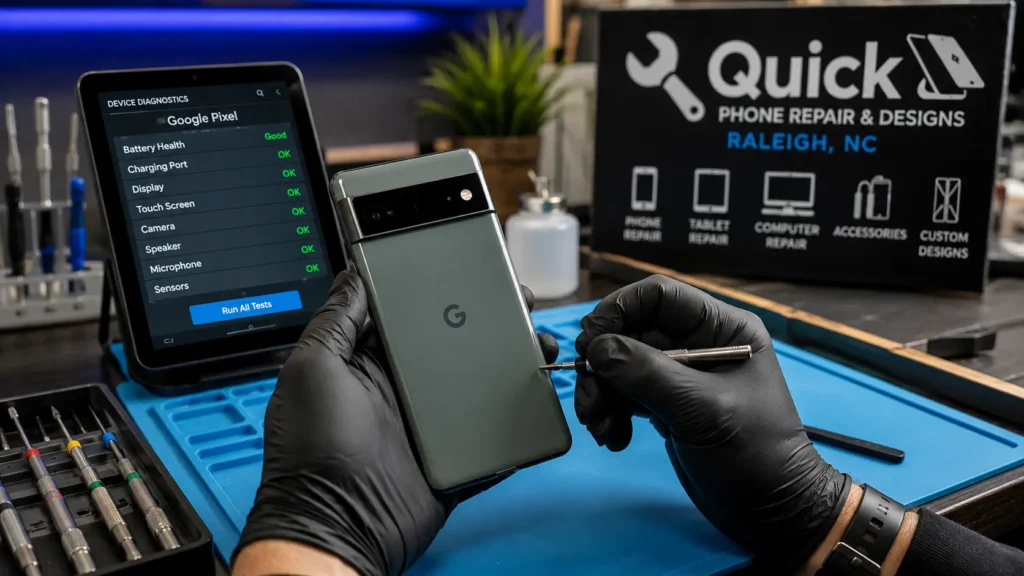
Introduction to Common Google Pixel Problems
Google Pixel phones are known for a clean version of Android, standout cameras, and some of the best computational photography on the market. But like any phone, they’re not immune to problems and Pixels have picked up a few well-documented quirks of their own over the years, from battery drain to the camera bar occasionally separating from the back panel on certain models.
Below, we cover the most common Google Pixel problems, what usually causes them, what you can try at home, and when it’s time to bring the phone to a professional. If you’re in the Raleigh, NC area including Garner, Wake Forest, Knightdale, Cary, Durham, Apex, Clayton, or Morrisville Quick Phone Repair & Designs offers same-day Pixel repairs at both our North and South Raleigh locations.
1. Battery Draining Too Fast
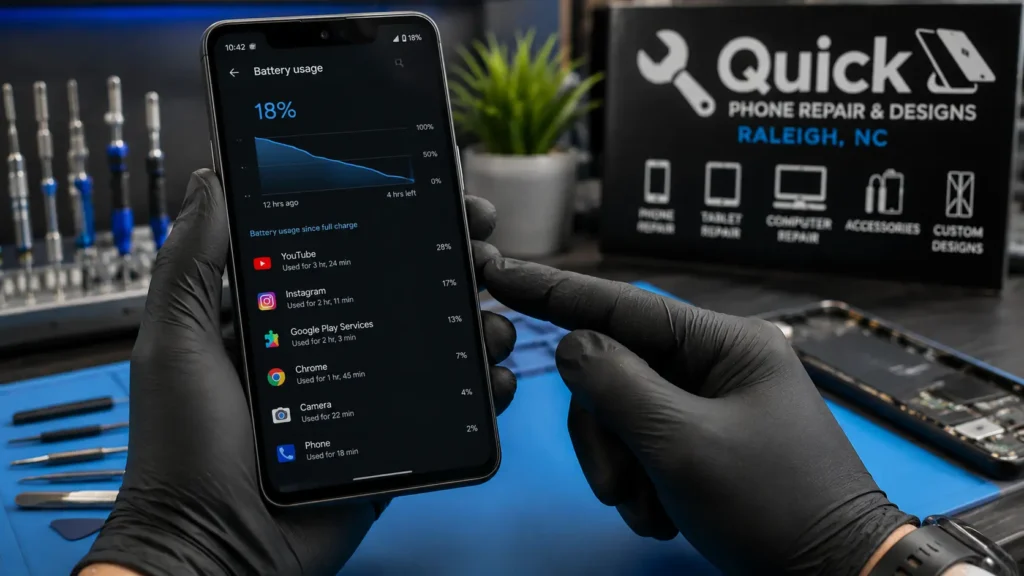
Battery life is one of the most common complaints among Pixel owners, especially on older models or after a major Android update.
Common causes:
- Background apps and location services running constantly
- Always-on display or high screen brightness
- Battery health declining naturally with age
- A software bug introduced by a recent Android or Pixel Feature Drop update
What you can try first:
- Turn on Battery Saver in Settings > Battery, or set it to activate automatically at a certain percentage.
- Check Settings > Battery > Battery usage to spot any single app draining power unusually fast.
- Turn off Always-On Display if you don’t need it.
- Restart the phone to clear background processes that build up over time.
When you need a professional: If the phone can’t make it through a normal day even in Battery Saver mode, or the battery health has clearly declined (noticeably shorter runtime than when new), it’s time for a battery replacement.
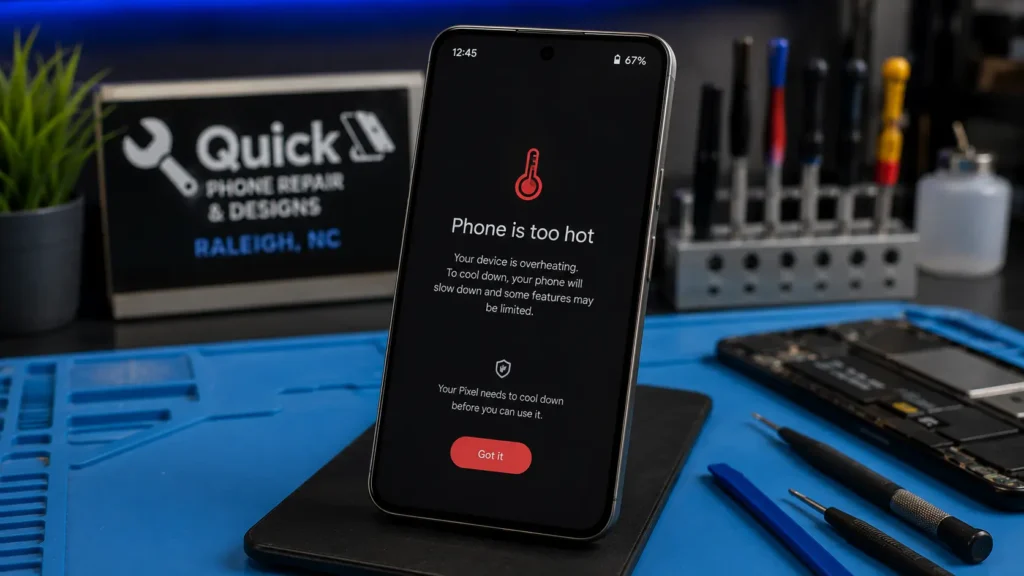
2. Overheating is one of Google Pixel Problems
Common causes:
- Heavy camera use, gaming, or video streaming while charging
- Direct sunlight or a hot car
- A non-certified or damaged charging cable
- Background apps overworking the processor
What you can try first:
- Remove the case while charging or during heavy use.
- Avoid charging while gaming or recording long videos.
- Use an original or certified charger and cable.
- Close unused background apps.
When you need a professional: If your Pixel overheats even during light, everyday use, or shows a temperature warning while sitting idle, that points to a battery or internal hardware issue rather than normal usage — it’s worth having a technician check it out.
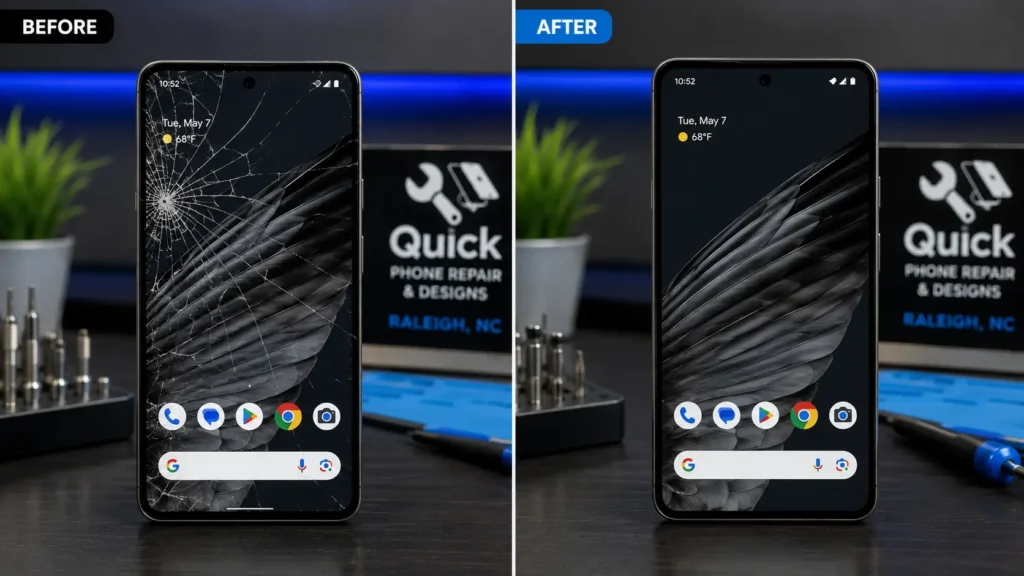
3. Cracked or Unresponsive Screen as a Google Pixel Problems
Common causes:
- A drop or impact cracking the glass
- Software glitch after an update causing touch responsiveness issues
- A screen protector interfering with touch sensitivity
- Digitizer damage from a previous drop
What you can try first:
- If the screen is unresponsive but not cracked, restart the phone first.
- Remove any screen protector and clean the display with a dry microfiber cloth.
- Check for a pending software update in Settings > System > System update.
- Apply clear tape over any crack temporarily to prevent it from spreading or shedding glass.
When you need a professional: Any visible crack in the glass, or unresponsive areas that persist after a restart and update these point to physical digitizer damage that needs a screen replacement.
4. Charging Problems
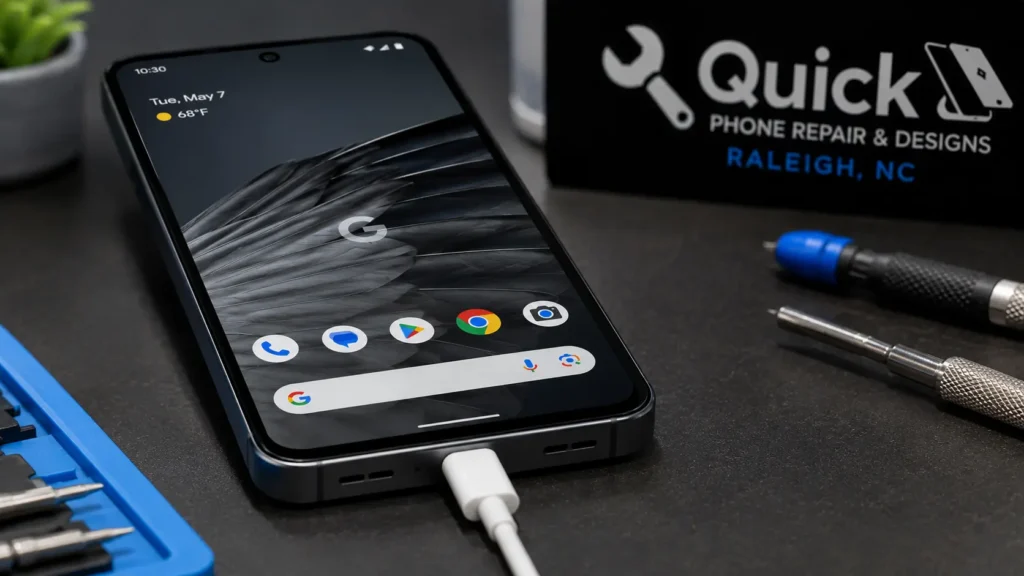
Common causes:
- Lint or debris in the charging port
- A worn-out or non-certified cable
- Software bug preventing the phone from recognizing the charger
- Physical damage to the charging port
What you can try first:
- Inspect the port with a flashlight and gently clean out any lint with a soft brush or compressed air avoid metal tools that can damage internal pins.
- Try a different cable and wall adapter.
- Restart the phone and try again.
- Check for a system update.
When you need a professional: If charging still fails after trying a different cable and cleaning the port, the port itself may be damaged and need professional replacement.
5. Camera Bar Separating From the Back Panel
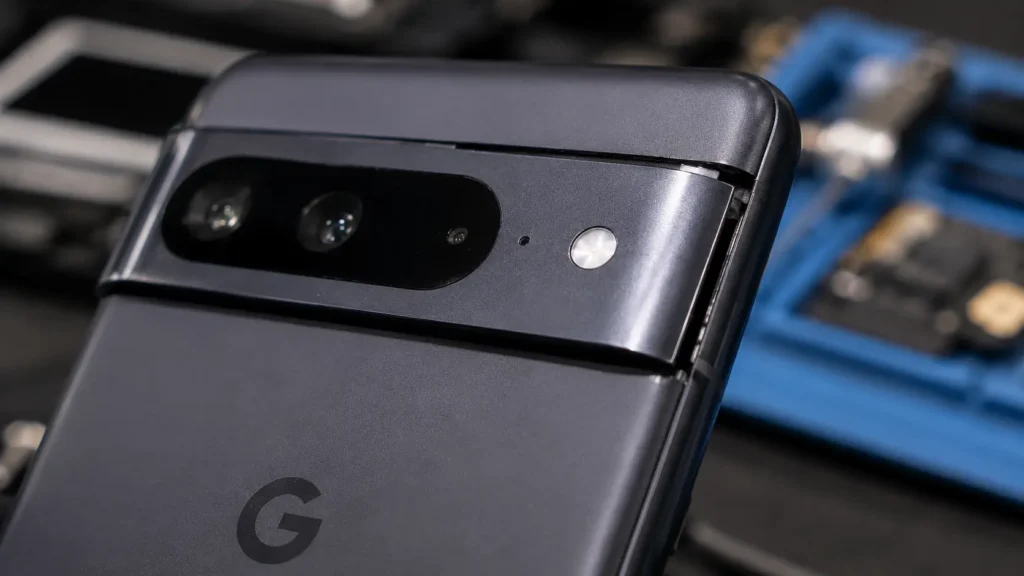
This is a issue specific to certain Pixel models (notably some Pixel 6 and 7 series devices), where the horizontal camera bar on the back of the phone can start to lift or separate from the rest of the housing over time, even without a drop.
What you can try first:
- Avoid pressing on the camera bar or using adhesive fixes yourself, which can trap dust or moisture underneath.
- Document the separation with photos and check whether your device is still under Google’s manufacturer warranty, since this has been treated as a known issue on some models.
When you need a professional: Always. This isn’t a DIY-fixable issue re-adhering the camera bar without professional-grade adhesive and tools risks damaging the camera modules underneath, and a technician can also check whether dust or moisture has already gotten in.
6. Microphone or Call Audio Issues
Common causes:
- Debris blocking the microphone port
- A third-party case blocking the mic opening
- Software bug affecting a specific app (e.g., calls fine, but voice memos aren’t)
- Physical microphone hardware damage, often from water exposure
What you can try first:
- Remove the case and check that the microphone opening isn’t blocked.
- Test the mic in different apps (Phone, Voice Recorder, a video app) to see if the problem is app-specific or system-wide.
- Restart the phone and check for updates.
- Clean the microphone opening gently with a soft, dry brush.
When you need a professional: If the mic doesn’t work across every app after a restart, cleaning, and update, the microphone hardware itself likely needs to be inspected or replaced.
7. Wi-Fi or Bluetooth Connectivity Drops
Common causes:
- Software bug following an Android update
- Corrupted network settings
- Router or Bluetooth accessory issue rather than the phone itself
- Antenna or hardware fault (less common, usually after a drop or water exposure)
What you can try first:
- Toggle Wi-Fi or Bluetooth off and on, or restart the phone.
- Forget the network or unpair the device, then reconnect.
- Reset network settings in Settings > System > Reset options > Reset Wi-Fi, mobile & Bluetooth.
- Confirm the issue isn’t with the router or accessory by testing with a different device.
When you need a professional: If connectivity issues persist across multiple networks and devices, and a network reset doesn’t help, it may point to an antenna or internal hardware fault worth having diagnosed.
8. Storage Filling Up Quickly
Pixel phones don’t support expandable storage, so once the built-in storage fills up, performance and photo/video capture can start to suffer.
What you can try first:
- Back up photos and videos to Google Photos or another cloud service, then remove local copies.
- Check Settings > Storage for a breakdown of what’s taking up space, and clear app caches.
- Uninstall unused apps.
- Use Google’s built-in “Free up space” storage manager tool.
When you need a professional: This one’s a software/usage fix, not a hardware repair but if storage management tools aren’t finding space you know should be free, a technician can help diagnose whether a corrupted file or system partition issue is involved.
Frequently Asked Questions About Google Pixel Problems
How much does it cost to fix a Google Pixel screen?
Cost varies by model, but a professional screen replacement is generally more reliable than a DIY kit and protects your phone’s other internal components from further damage.
Is the Pixel camera bar separating a known issue?
Yes, this has been reported on certain Pixel models, particularly some 6 and 7 series devices. If you notice separation, check your warranty status and avoid pressing on it or trying to re-glue it yourself.
Can I fix Google Pixel problems myself?
Software issues battery drain, connectivity drops, overheating from overuse can often be resolved at home with a restart, update, or settings reset. Physical damage, like a cracked screen, separating camera bar, or damaged charging port, needs professional repair.
How long does a Google Pixel repair take?
Most Pixel repairs at Quick Phone Repair & Designs are completed within 30 minutes to an hour, depending on the model and part availability.
Do you repair Google Pixel phones the same day in Raleigh?
Yes. Quick Phone Repair & Designs offers same-day Google Pixel repair at both our North Raleigh and South Raleigh locations.
When It’s Time to Call a Professional
Software glitches battery drain, occasional Wi-Fi hiccups, an overheating phone during heavy use are usually worth troubleshooting on your own first. But once you’re dealing with cracked glass, a separating camera bar, a damaged charging port, or a battery that won’t hold a charge, it’s time for a professional. Attempting a DIY fix on a Pixel’s tightly packed internals can easily damage the camera modules, antenna, or water seals.
Get Your Google Pixel Fixed Fast in Raleigh, NC
If you’re dealing with any of the problems above, Quick Phone Repair & Designs offers free diagnostics and fast, affordable Google Pixel repair at our North Raleigh and South Raleigh locations. Most repairs are completed in 30–45 minutes using quality replacement parts, and every repair comes with a warranty.
We proudly serve customers in Raleigh, Garner, Wake Forest, Knightdale, Cary, Durham, Apex, Clayton, Morrisville, and the surrounding Triangle area. Walk-ins are welcome, or you can book an appointment online or get an instant quote before you visit.
North Raleigh: 3111 Leland Dr, #110, Raleigh, NC 27616 — (919) 295-1397 South Raleigh: 6213 Rock Quarry Rd, #106, Raleigh, NC 27610 — (919) 307-8600