
Common iPhone Screen Problems and How to Fix Them
Introduction
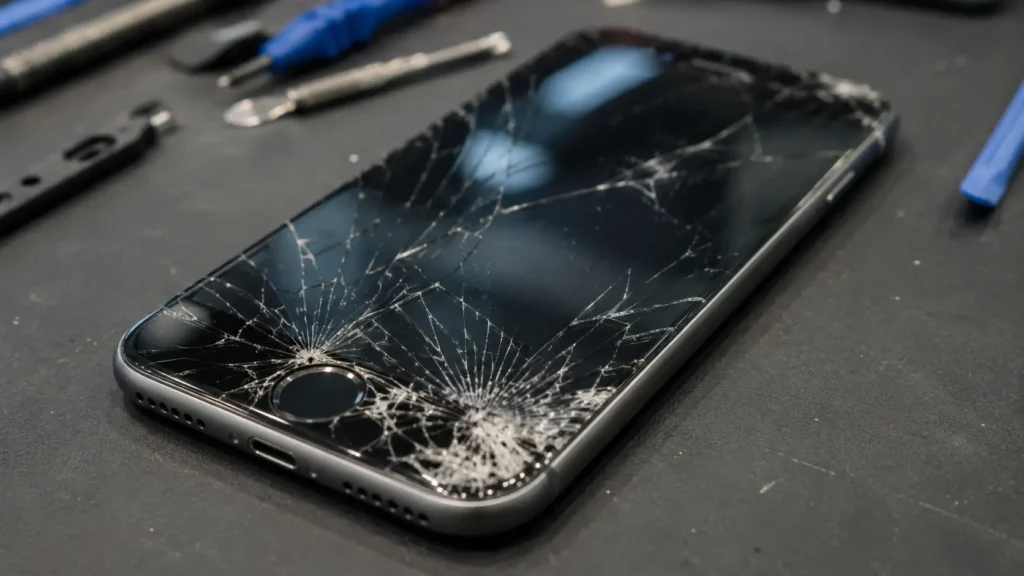
Your iPhone’s screen is the part of the phone you touch, tap, and stare at more than anything else. When something goes wrong with it, it’s impossible to ignore. Maybe you dropped it on the sidewalk and now there’s a spiderweb of cracks and starts iPhone screen problems. Maybe the screen has started flickering out of nowhere, or your touch input feels laggy and unpredictable. Some of these problems have a simple software fix you can try at home. Others are a sign of real hardware damage that needs a technician’s attention.
In this guide, we’ll walk through the most common iPhone screen problems, explain what’s usually causing each one, and give you practical steps to try before booking a repair. If you’re in the Raleigh, NC area including Garner, Wake Forest, Knightdale, Cary, Durham, Apex, Clayton, or Morrisville we’ll also point you toward when it’s time to bring your device to a local shop like Quick Phone Repair & Designs for a same-day fix.
1. Cracked or Shattered Screen
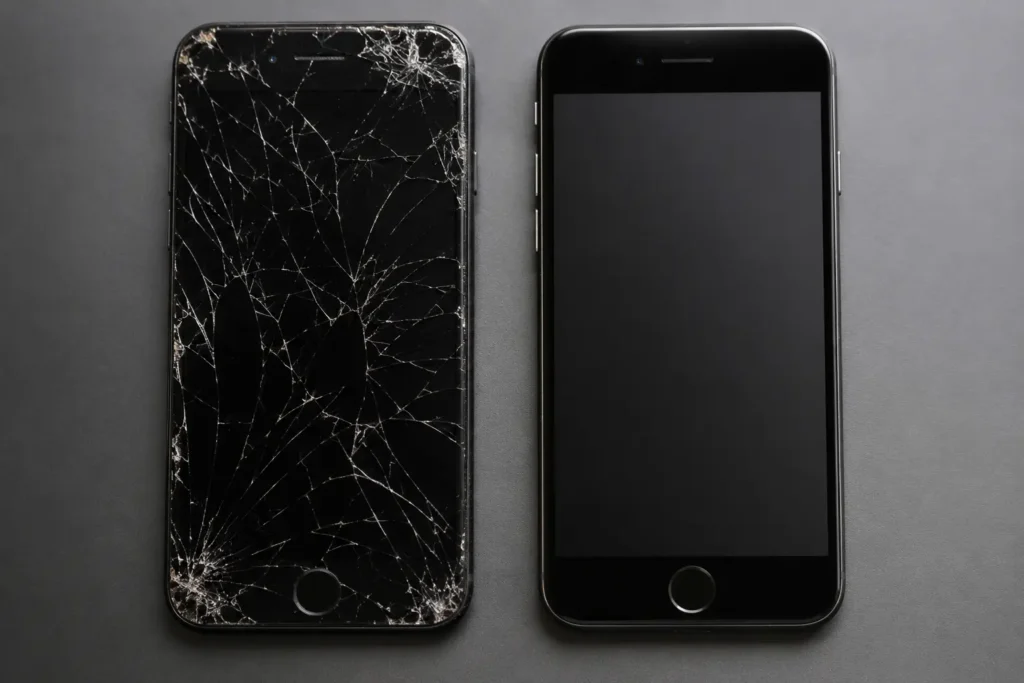
This is the single most common iPhone problems, and it usually has one clear cause: a drop, bump, or hard impact. Even a fall from waist height onto a hard surface can shatter the glass, especially if the phone lands corner-first or without a case.
What you can try first:
- Apply clear packing tape over the crack temporarily to prevent glass shards from loosening further.
- Avoid pressing hard on the display or using it near your face until it’s repaired.
- Back up your data immediately in case the touchscreen becomes unresponsive as the crack spreads.
When you need a professional: Any visible crack in the glass. Even a small crack can spread with normal use, and micro-fractures can let in dust and moisture that damage the display underneath. A cracked screen isn’t something to DIY mismatched adhesive or incorrect reassembly can damage the OLED panel, Face ID sensors, or waterproofing seals.
2. Unresponsive or Laggy Touch Screen

-
If your screen isn’t registering taps and swipes correctly, or responds only in certain areas, the cause could be software or hardware.
Common causes:
- A buggy iOS update or app conflict
- A screen protector or case interfering with sensitivity
- Moisture or dirt on the screen or in the charging port
- Digitizer (touch sensor) damage from a previous drop
What you can try first:
- Remove any screen protector or case and clean the display with a dry microfiber cloth.
- Force restart the iPhone (this varies slightly by model press Volume Up, then Volume Down, then hold the Side button until the Apple logo appears).
- Update iOS in Settings > General > Software Update.
- Test whether the problem happens in every app or just one if it’s isolated to a single app, try reinstalling it.
When you need a professional: If the unresponsive areas stay consistent (like the same corner every time) after a restart and update, that points to physical digitizer damage, which needs a screen replacement.
3. Screen Flickering or Flashing
-
A flickering display is unsettling, but it’s often software-related rather than a sign your screen needs replacing.
Common causes:
- Auto-Brightness or True Tone acting erratically
- An outdated or buggy app running in the background
- Loose display cable connections after a drop (hardware cause)
What you can try first:
- Turn off Auto-Brightness in Settings > Accessibility > Display & Text Size > Auto-Brightness.
- Turn off True Tone in Settings > Display & Brightness.
- Force restart the device.
- Uninstall and reinstall any app that seems to trigger the flicker.
When you need a professional: If flickering persists after a factory reset, or started right after a drop, the display cable connector likely needs to be reseated or replaced a job best left to a repair technician, since the connector sits under sensitive internal components.
4. Black Screen or “Black Screen of Death”
-
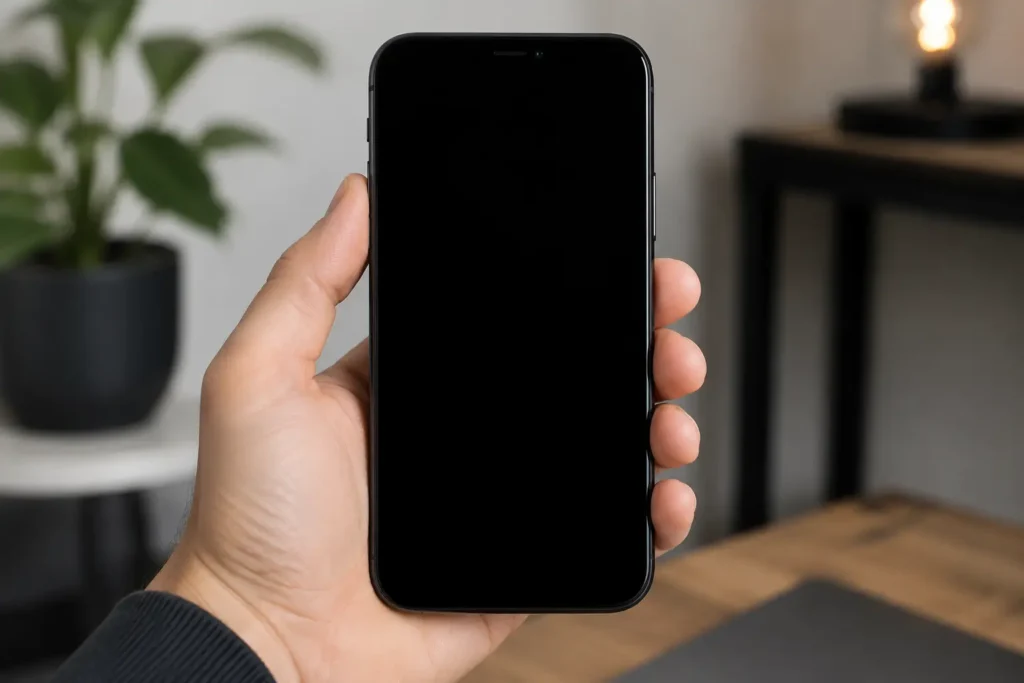
Your phone rings, vibrates, or lights up with notifications, but the screen itself stays completely black. This can be one of the more alarming iPhone problems because it looks like total device failure but it isn’t always.
Common causes:
- Software crash or failed update
- Battery drained to the point the phone can’t power the display
- Water damage
- Failed display connector after a drop
What you can try first:
- Plug the phone into a wall charger for at least 15 minutes, since a fully dead battery can look identical to a black screen issue.
- Force restart the device.
- If you can hear iTunes/Finder recognize the phone when connected to a computer, try restoring via recovery mode.
When you need a professional: If a force restart and full charge don’t bring the screen back, especially after a water exposure or drop, the display itself or its connector likely needs replacement.
5. Ghost Touch (Phantom Taps)
-
Ghost touch is when your screen registers taps, swipes, or keystrokes that nobody actually made apps open on their own, text gets typed randomly, or the screen scrolls by itself.
Common causes:
- A poor-quality or damaged screen protector
- Static electricity or charging cable interference
- Digitizer damage from impact
- Manufacturing defects in the display assembly (more common on certain iPhone 11 and iPhone X batches)
What you can try first:
- Remove the screen protector and case entirely and test again.
- Unplug the charging cable while testing, since some cheap or damaged cables cause interference.
- Force restart and update iOS.
When you need a professional: Ghost touch that continues without a screen protector or charging cable connected is almost always a hardware issue and needs a screen replacement.
6. Dead Pixels or Discoloration
-
Small spots on the screen that stay black, white, or a fixed color regardless of what’s displayed are dead or stuck pixels. Discoloration (a yellow or greenish tint in one area) is a related but separate issue.
Common causes:
- Manufacturing defect (rare, usually shows up early in the phone’s life)
- Physical pressure or impact damage to the display panel
- Age-related wear on the OLED panel
What you can try first:
- For a stuck (not dead) pixel, some users have success gently massaging the area with a soft cloth, though this doesn’t always work and carries some risk.
- Check if the spot moves or changes with different background colors this can help a technician diagnose whether it’s a pixel issue or a deeper display panel problem.
When you need a professional: Dead pixels and discoloration don’t fix themselves and require a screen replacement, since the individual pixel elements can’t be repaired in isolation.
7. Screen Freezing or Lagging Are common iPhone Screen Problems
-
If your screen locks up entirely no response to taps, buttons, or gestures for more than a few seconds, that’s a freeze rather than simple lag.
Common causes:
- Storage nearly full
- Background app overload
- An iOS update that didn’t fully install
- Battery health degraded to the point the phone throttles performance
What you can try first:
- Check available storage in Settings > General > iPhone Storage and delete unused apps or media.
- Force restart if the freeze doesn’t clear on its own.
- Update to the latest iOS version.
- Check battery health in Settings > Battery > Battery Health & Charging.
When you need a professional: If freezing continues after a factory reset and storage cleanup, it may point to a hardware fault, especially in older devices where the battery or logic board is under strain.
Frequently Asked Questions About iPhone Screen Problems
How much does it cost to fix a cracked iPhone screen problem?
Cost depends on the iPhone model and screen type (LCD vs. OLED), but a professional replacement is almost always more affordable and reliable than a DIY kit, and it protects the phone’s water resistance and Face ID function.
Can I fix my iPhone screen myself?
Simple software issues like flickering or freezing can often be resolved at home. Physical damage cracks, dead pixels, digitizer problems needs professional tools and genuine or high-quality replacement parts to avoid further damage.
How long does an iPhone screen repair take?
Most iPhone screen repairs at Quick Phone Repair & Designs are completed within 30 minutes to an hour, depending on the model and part availability.
Will I lose my data if I get my screen replaced?
No. A screen replacement doesn’t affect the data stored on your iPhone’s internal storage. It’s still smart to back up beforehand as a precaution.
Does a cracked screen affect Face ID?
It can. Cracks near the top of the display can damage the sensors used for Face ID, so it’s best to get a cracked screen repaired quickly rather than waiting.
Do you repair iPhone screens the same day in Raleigh?
Yes. Quick Phone Repair & Designs offers same-day iPhone screen repair at both our North Raleigh and South Raleigh locations, with most repairs completed in under an hour.
When It’s Time to Call a Professional For Your iPhone Screen Problems
Software glitches are worth troubleshooting on your own first restarting, updating, and clearing storage solve a surprising number of screen issues. But once you’re dealing with cracked glass, dead pixels, ghost touch, or a screen that won’t come back after a full charge and restart, it’s time for a professional repair. Attempting a DIY screen replacement without the right tools can damage the digitizer, the Face ID module, or the phone’s water resistance turning a simple fix into a much bigger repair bill.
Fix Your iPhone Screen Problem Fast in Raleigh, NC
If you’re dealing with any of the screen problems above, Quick Phone Repair & Designs offers free diagnostics and fast, affordable iPhone screen problem repair at our North Raleigh and South Raleigh locations. Most screen repairs are completed in 30–45 minutes using quality replacement parts, and every repair comes with a warranty.
We proudly serve customers in Raleigh, Garner, Wake Forest, Knightdale, Cary, Durham, Apex, Clayton, Morrisville, and the surrounding Triangle area. Walk-ins are welcome, or you can book an appointment online or get an instant quote before you visit.
North Raleigh: 3111 Leland Dr, #110, Raleigh, NC 27616 — (919) 295-1397 South Raleigh: 6213 Rock Quarry Rd, #106, Raleigh, NC 27610 — (919) 307-8600